Buying Michigan Licences Online
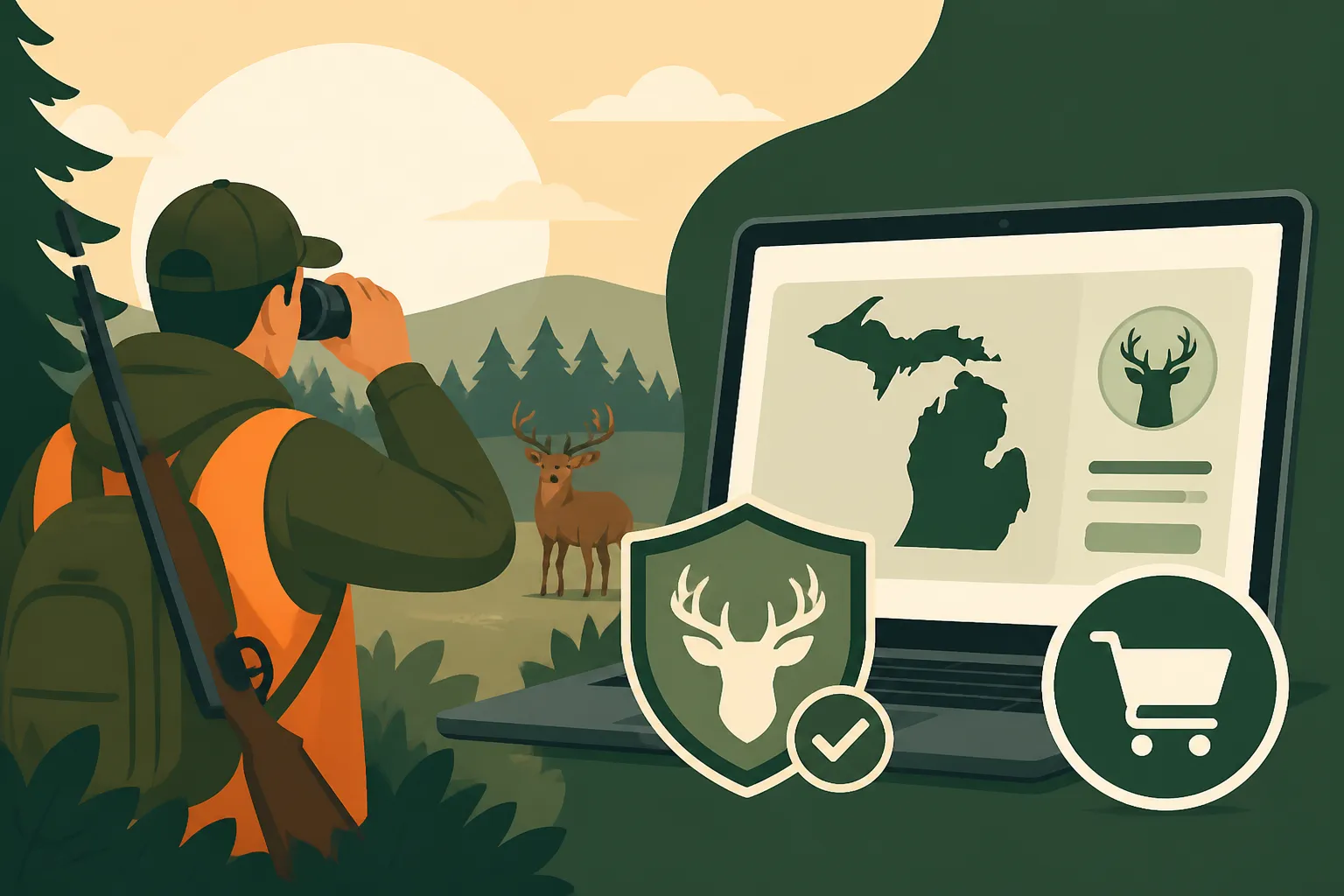
The headache of preparing for Michigan's hunting seasons used to involve trips to crowded sporting goods stores, waiting in line, and fumbling with paperwork. But those days are largely behind us, thanks to the ease and convenience of purchasing your Michigan hunting and fishing licenses online. This guide will walk you through everything you need to know to acquire your licenses digitally, ensuring you're ready for the field without unnecessary stress.
Why Buying Your Michigan Licenses Online is a Game Changer
Let's be real, time is precious, especially when you're trying to balance work, family, and the call of the wild. The Michigan Department of Natural Resources (DNR) has made significant strides in streamlining the licensing process, and their online portal is a prime example. No more rushing before closing time, no more wondering if your local bait shop still has the specific tag you need. You can handle everything from the comfort of your couch, 24/7.
Convenience at Your Fingertips
The sheer convenience of online license purchases cannot be overstated. Imagine it's late in the evening, you've just scouted a new piece of public land for a deer hunt, and suddenly remember you still need your antlerless tag for the upcoming season. Instead of panicking about where to go in the morning, a few clicks on your computer or phone, and you're all set. This flexibility is a huge benefit for anyone with a busy schedule. You can literally buy your license moments before heading out to the woods, provided you have a reliable internet connection. This also means you're less likely to forget a crucial tag or stamp, which could lead to a hefty fine and a ruined hunt.
Avoiding the Opening Day Rush
Anyone who's been a hunter in Michigan for a while knows the chaos that can sometimes accompany opening day, especially for popular seasons like firearms deer season. Sporting goods stores and DNR offices can be packed, leading to long lines and even longer waits. By purchasing your licenses online well in advance, you completely sidestep this particular frustration. You can print out your licenses at home, save them to your mobile device, or have them mailed to you, all without a single queue. This smooth start to your season can make a real difference in your overall hunting experience, allowing you to focus on the hunt itself, not the pre-hunt logistics.
Your Step-by-Step Guide to Online License Purchase
The process for buying your Michigan hunting licenses online is designed to be straightforward, but it helps to know what to expect. This walk-through will cover everything from setting up an account to confirming your purchase.
Creating or Accessing Your DNR Account
The first thing you'll need is an account with the Michigan DNR. If you've ever bought a license in Michigan before, even in person, you likely already have an ID number associated with your profile.
- Visit the Official DNR Website: Head to the Michigan DNR's official website (Michigan.gov/DNR) and look for the "Buy Licenses" or "Recreational Boating & Fishing" section. Don't worry, hunting licenses are typically found in the same portal.
- Locate the "Buy Your License" Link: Click on the link that directs you to the online license sales system.
- Log In or Create Account:
- Existing Users: If you're a returning hunter, you'll enter your DNR Sportcard ID, driver's license number, or customer ID, along with your date of birth. If you've forgotten your login details, there are options to retrieve them, often by confirming your personal information. Many hunters use external tools like GoHunt for planning, but for the actual purchase, the DNR site is your official stop.
- New Users: If this is your very first time purchasing a Michigan license, you'll be prompted to create a new profile. This will involve providing your personal details like name, address, date of birth, and possibly creating a Sportcard ID. Be sure to fill out all required fields accurately, as this information is crucial for verifying your identity and residency. Don't forget, if you're a youth hunter, you'll need to look into the specific rules around the Michigan Mentored Youth Licence Rules.
Selecting Your Desired Licenses and Stamps
Once logged in, you'll be presented with a menu of available licenses. This is where you'll pick out everything you need for your upcoming adventures.
- Browse License Categories: The system usually organizes licenses by type: Hunting, Fishing, ORV, Snowmobile, etc. Navigate to the hunting section.
- Choose Your Base License: Most Michigan hunters will start with a Michigan Base Licence Explained. This is your foundational license that allows you to purchase other specific tags. You'll need to specify if you are a resident or non-resident, as Michigan Nonresident Licence Options can differ significantly in price.
- Add Specific Hunting Tags:
- Deer Hunting: Select your preferred Michigan Deer Licence and Combo Options, whether it's a single deer license or a deer combo. Don't forget any necessary Michigan Antlerless Deer Licences if you plan on harvesting a doe.
- Other Game: If you're planning for other species, you'll find options for small game, turkey, bear, and waterfowl. For instance, if you're targeting birds, you'll also need your Michigan Waterfowl Licence and Stamps, which includes state and federal duck stamps.
- Special Draws: For species like bear or elk, you might also be applying for a draw, not just buying a tag outright. For example, the Michigan Bear Licence Drawing has specific application periods. The system will guide you through these processes if applicable.
- Verify Your Selections: Before proceeding, double-check that you've selected all the correct licenses for the seasons you intend to hunt. It's easy to overlook a small game license or a specific tag.
Payment and Confirmation
This is the final stage of your online purchase. Make sure you have your payment information ready.
- Review Your Cart: The system will display a summary of all the licenses you've added, along with the total cost. Take a moment here to ensure everything is correct, checking for duplicates or missed items.
- Enter Payment Information: You'll typically use a credit or debit card (Visa, MasterCard, Discover, American Express). Input your card details, billing address, and any other required payment information securely. The DNR's online system uses encryption to protect your financial data.
- Confirm Purchase: Once you've entered your payment details, you'll usually have a final "Place Order" or "Confirm Purchase" button. Click this to finalize the transaction.
- Receive Confirmation: After a successful purchase, you'll receive a confirmation page. This usually includes a transaction ID and a link to print your licenses immediately. You'll also typically receive an email confirmation with the same information. Keep this email for your records, as it serves as proof of purchase. This email often contains direct links to print or download your licenses.
What to Prepare Before You Start
To make your online license purchase as smooth as possible, gather these items beforehand:
| Item | Description | Importance |
|---|---|---|
| DNR Sportcard ID | If you have one, speeds up login. | High (for returning users) |
| Driver's License | For identification and residency verification. | High |
| Date of Birth | Essential for verifying your identity. | High |
| Current Address | For license mailing and residency. | High |
| Credit/Debit Card | For payment (Visa, MasterCard, Discover, Amex). | High |
| Printer Access | To print hard copies of your licenses (optional but recommended). | Medium (digital copies are usually accepted) |
| Email Address | For confirmation and digital license receipt. | High |
| Hunter Safety Number | If you've taken a Michigan Hunter Safety Requirement. | High (for new hunters, certain ages/licences) |
Managing Your Licenses and Troubleshooting Common Issues
Even with a smooth online system, sometimes questions or minor hiccups arise. Knowing how to manage your digital licenses and what to do if you encounter a problem can save you a lot of grief.
The Michigan DNR Hunt Fish App
One of the best tools for modern Michigan hunters is The Michigan DNR Hunt Fish App. This app, available for both iOS and Android devices, allows you to store digital versions of your licenses right on your smartphone.
- Digital Storage: After purchasing online, you can often link your account to the app, and your licenses will appear there. This means you don't always need a physical printout. However, it's a good practice to always have a physical copy or at least a screenshot saved, especially in areas with no cell service.
- Harvest Reporting: The app also streamlines harvest reporting. After you take a deer, bear, or turkey, you're required to report it within 72 hours. The app makes this incredibly easy, allowing you to report your Reporting a Michigan Deer Harvest directly from the field. This is a huge convenience compared to finding a physical check station or logging onto a computer after a long day.
Printing Your Licenses and Hard Copies
While digital licenses are convenient, having a physical copy is often preferred or even required in some situations.
- From the Confirmation Page/Email: Immediately after purchase, you'll have an option to print. If you miss that, your confirmation email will contain a link to reprint your licenses at any time.
- Through Your DNR Account: You can always log back into your Michigan DNR account on the website, go to your license history, and print or reprint any valid licenses.
- Why a Hard Copy? Some hunters prefer a hard copy for simple reliability – no battery worries, no screen glare. Plus, tags for certain species like deer or bear still require physical validation and attachment to the animal after harvest. While the DNR Hunt Fish app can help with reporting, you'll still need to follow the physical tagging requirements.
Troubleshooting and Support
Occasionally, you might run into an issue. Here's how to navigate them:
- Login Issues: If you can't access your account, use the "Forgot ID" or "Forgot Password" options. Make sure the information you're entering (like your driver's license number or date of birth) matches what the DNR has on file.
- Payment Problems: Double-check your card number, expiration date, and security code. Ensure your billing address matches what's on file with your bank. If the problem persists, contact your bank or credit card company.
- No Confirmation Email: Check your spam or junk folder. If it's not there, log back into your DNR account to verify the purchase went through and that your email address on file is correct. You can usually reprint your licenses directly from your account history.
- Incorrect License Purchase: If you accidentally bought the wrong license, act quickly. Contact the DNR customer service line as soon as possible. Their contact information is usually available on their website. Depending on the situation and how much time has passed, they may be able to assist with a refund or exchange.
- Technical Glitches: While rare, websites can have technical issues. If you encounter errors, try clearing your browser's cache and cookies, or try a different web browser. If the issue persists, wait a bit and try again, or contact DNR customer service.
Online license purchasing has genuinely revolutionized how Michigan hunters prepare for their seasons. It's a testament to the DNR's commitment to making hunting accessible and less bureaucratic for everyone. Whether you're planning your spring turkey hunt and applying for Michigan Spring Turkey Applications and Units or just need your annual Michigan Resident Deer Licence Cost, the online system is your reliable friend.
Disclaimer
The information provided in this guide is for general informational purposes only and is subject to change. Always consult the official Michigan Department of Natural Resources (DNR) website and current hunting regulations for the most accurate and up-to-date information regarding licenses, seasons, and rules before heading afield.